01 / SEE THE STATUS
Know which line is connected.
Check your registered line, the phone's internet connection, battery and recent check-in.
Ara Connect helps your team spot a disconnected WhatsApp line and follow the steps to reconnect, right from its sending phone.
Get Ara Connect on Google PlayFor eligible Ara business lines · Android 8.0 or later
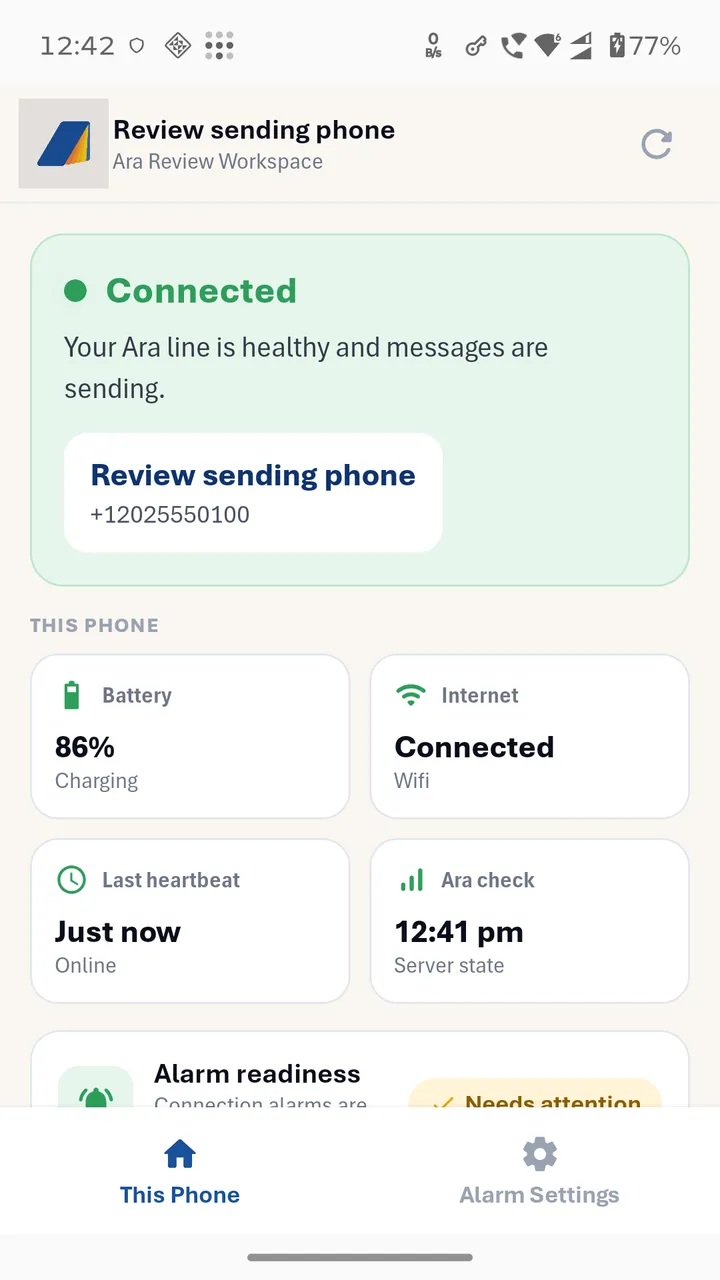
Keep Ara Connect on the Android phone used for your Ara WhatsApp line. It shows the line's connection status and helps the person holding the phone respond when attention is needed.
Check your registered line, the phone's internet connection, battery and recent check-in.
Connection alarms can sound and vibrate when Ara reports that your line has disconnected.
Open the recovery instructions and confirm when Ara sees the line connected again.
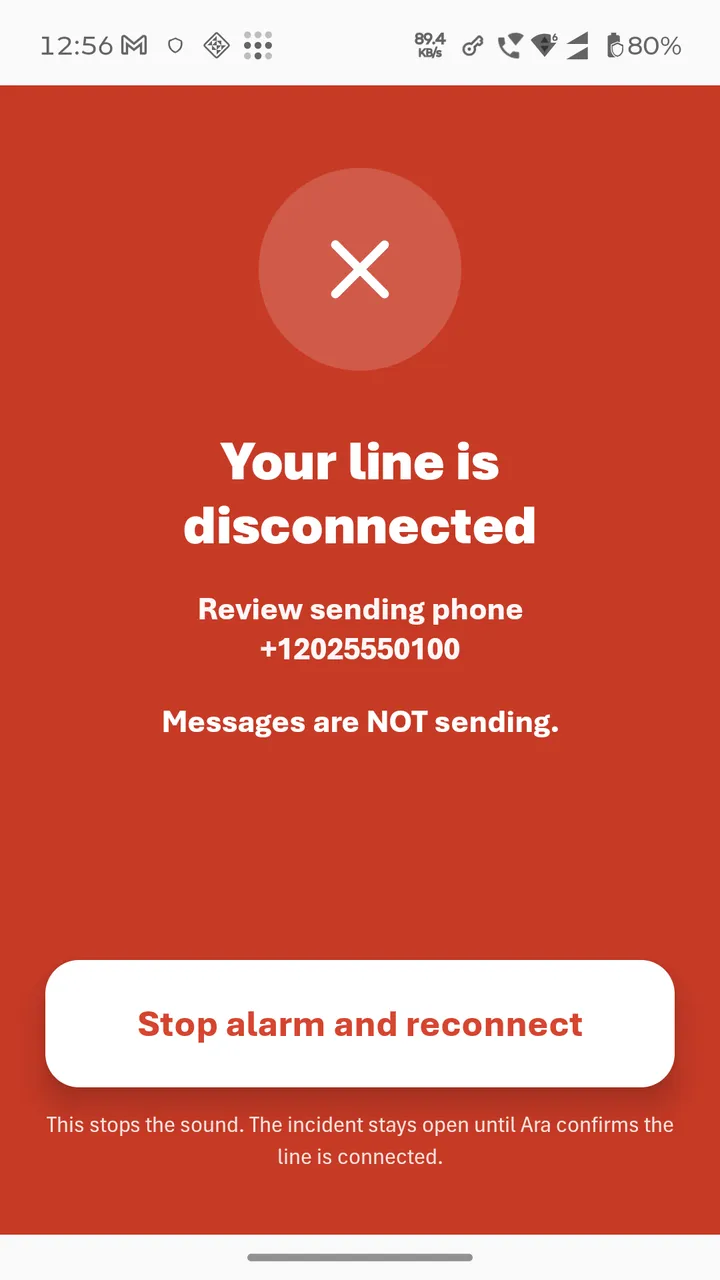
The alert shows the line name and number, so the person with the phone knows what needs attention.
Tap Stop alarm and reconnect to silence the alarm and open the next steps.
Follow the instructions shown for your line. If Ara Web asks you to scan a QR code, keep it open on a computer or second screen.
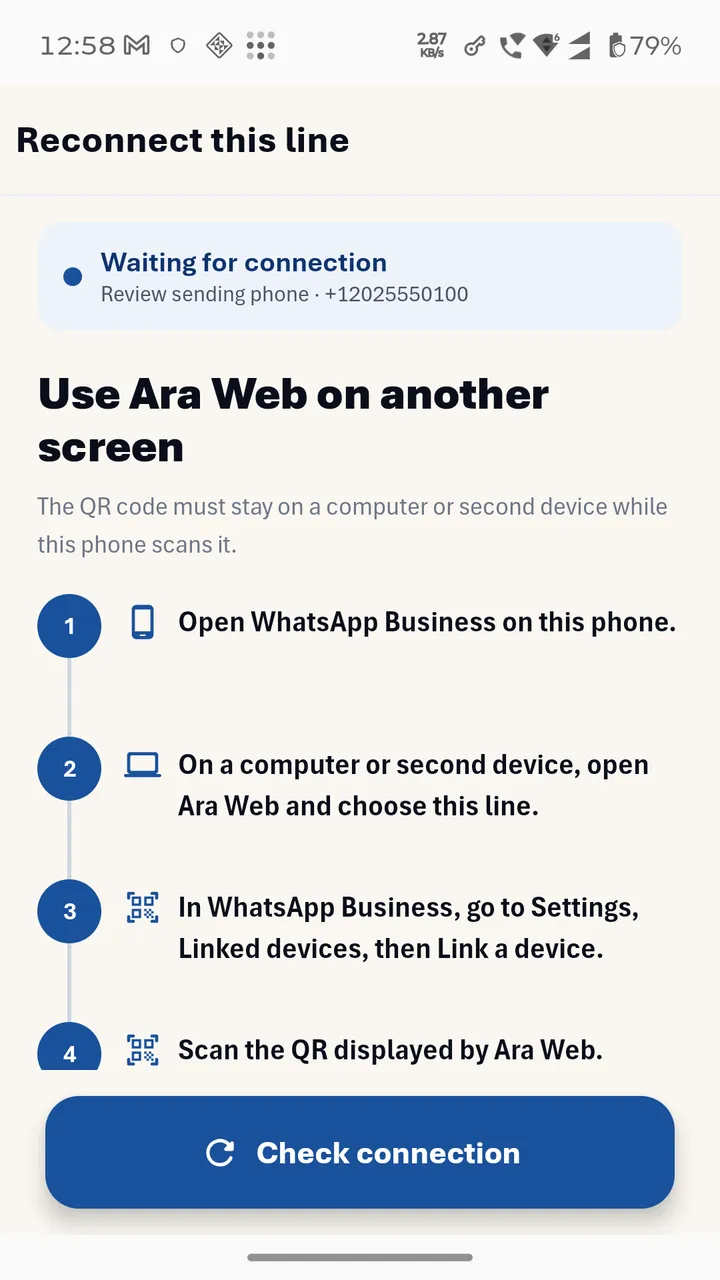
Real app screenshots from a demonstration workspace. Names and numbers are examples. Screens may vary by app version and Android settings.
Have your Ara business login ready, and confirm which WhatsApp line this phone is responsible for.
Get Ara Connect from Google Play. Log in with the Ara account your business uses.
Select the correct line name and number, then tap Connect this phone. Each installation connects to one line.
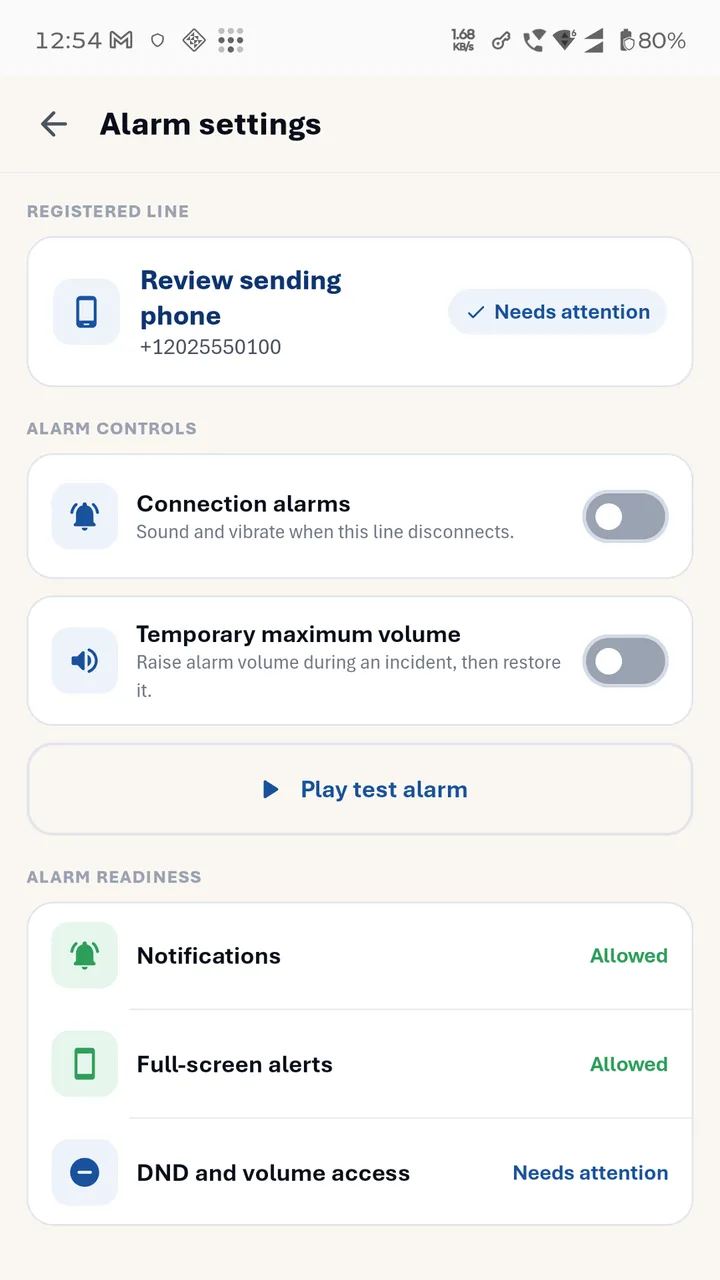
Enable Connection alarms and review the notification, full-screen, volume and background settings shown in the app.
The setup includes a test alarm. Complete it where sound is appropriate, then check This Phone and alarm readiness.
Cannot find your line, or it is already connected to another phone? Ask your Ara administrator to check access or release the previous phone binding.
Sound, full-screen presentation and background delivery depend on the phone's permissions and Android settings. Temporary maximum volume is optional.
It alerts you and guides you through recovery. Follow the instructions for your line, including scanning a QR code when required. Ara confirms when the line is connected again.
Connected describes the line's connection to Ara. Individual message delivery still depends on the messaging provider and the recipient.
No cable or open computer is needed for routine alerts. The phone needs internet access. You may need a computer or second screen to display a QR code during reconnection.
It cannot receive a new remote alert while offline. Keep the phone online so Ara Connect can receive updates and reconcile the line's current state.
Use Log out and release line in Alarm settings before setting up the other phone. If the old phone is unavailable, ask your Ara administrator for help releasing its binding.
Install Ara Connect on your sending phone and complete setup.
Get Ara Connect on Google Play ↗